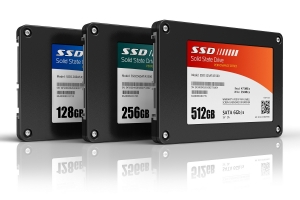
A Solid-State Drive (SSD) is one of the most important upgrades for improving computer performance. Unlike traditional hard disk drives (HDDs), SSDs have no moving parts, making them significantly faster, quieter, more energy-efficient, and more resistant to physical shock.
Although SSDs require less maintenance than HDDs, proper operational maintenance can greatly improve their performance, reliability, and lifespan.
Why SSD Maintenance Matters
Proper SSD maintenance helps:
- Improve application loading times
- Increase operating system responsiveness
- Extend SSD lifespan
- Prevent data corruption
- Maintain maximum read/write performance
- Reduce unnecessary write operations
- Improve overall system reliability
Operational Maintenance of Solid-State Drives (SSDs)
A Practical Guide for Windows, Linux, and Business Workstations
Introduction
A Solid-State Drive (SSD) is one of the most important upgrades for improving computer performance. Unlike traditional hard disk drives (HDDs), SSDs have no moving parts, making them significantly faster, quieter, more energy-efficient, and more resistant to physical shock.
Although SSDs require less maintenance than HDDs, proper operational maintenance can greatly improve their performance, reliability, and lifespan.
Why SSD Maintenance Matters
Proper SSD maintenance helps:
- Improve application loading times
- Increase operating system responsiveness
- Extend SSD lifespan
- Prevent data corruption
- Maintain maximum read/write performance
- Reduce unnecessary write operations
- Improve overall system reliability
1. Keep Your Operating System Updated
Modern operating systems include SSD optimizations.
Windows
Install the latest:
- Windows Updates
- Device drivers
- Storage controller drivers
- SSD firmware updates
Linux
Keep updated using:
Ubuntu/Debian
sudo apt update sudo apt upgrade
Fedora
sudo dnf update
2. Enable AHCI Mode
AHCI (Advanced Host Controller Interface) enables advanced SSD features including:
- Native Command Queuing
- TRIM support
- Better multitasking performance
Always enable AHCI in the BIOS before installing Windows whenever possible.
3. Ensure TRIM is Enabled
TRIM allows the operating system to tell the SSD which blocks are no longer needed.
Benefits include:
- Faster write speeds
- Longer SSD lifespan
- Better garbage collection
- Reduced write amplification
Check TRIM in Windows
Open Command Prompt:
fsutil behavior query DisableDeleteNotify
Results:
DisableDeleteNotify = 0
means TRIM is enabled.
Linux
sudo systemctl status fstrim.timer
4. Leave Free Space
Never completely fill an SSD.
Recommended free space:
- 15–25%
Example
500 GB SSD
Keep at least
75–100 GB free
This allows the controller to perform:
- Wear leveling
- Garbage collection
- Block management
5. Optimize (Not Defragment)
Windows automatically recognizes SSDs.
Instead of traditional defragmentation, Windows performs:
- TRIM optimization
- Reclaim operations
Open:
Defragment and Optimize Drives
Verify:
Media Type Solid State Drive
6. Enable Write Caching
Device Manager
Disk Drives
Properties
Policies
Enable:
✔ Write Caching
Benefits:
- Faster writes
- Better performance
Use a UPS on desktop systems to reduce data loss risk during power failures.
7. Update SSD Firmware
Manufacturers periodically release firmware updates.
Benefits include:
- Performance improvements
- Bug fixes
- Reliability enhancements
- Security improvements
Popular SSD tools include those from:
- Samsung
- Western Digital
- Kingston
- Crucial
- Intel
- Seagate
Always back up important data before updating firmware.
8. Avoid Unnecessary Writes
Every SSD has a finite write endurance.
Reduce unnecessary writes by:
- Moving temporary downloads elsewhere if appropriate
- Clearing browser cache periodically
- Avoiding excessive benchmarking
- Not repeatedly copying large files without need
Modern SSDs are highly durable, so normal daily use is not a concern.
9. Monitor SSD Health
Regularly monitor:
- Temperature
- SMART status
- Remaining life
- Total bytes written (TBW)
- Reallocated sectors
Popular tools include:
- CrystalDiskInfo
- SSD Life
- smartmontools
- Manufacturer utilities
10. Use Proper Power Settings
Avoid overly aggressive power-saving settings that repeatedly put the SSD into low-power states.
Windows:
High Performance
or
Balanced
is usually sufficient.
11. Disable Legacy Optimizations (Only if Needed)
Older SSD optimization guides recommended disabling:
- Superfetch
- Prefetch
- Disk indexing
- Paging file
- System Restore
- Hibernation
Current versions of Windows 10 and Windows 11 automatically manage these features. In most cases, it is not recommended to disable them unless you have a specific performance or storage reason.
12. Back Up Your Data
SSDs can fail unexpectedly.
Follow the 3-2-1 backup rule:
- Three copies of important data
- Two different storage media
- One off-site or cloud backup
Backups are the best protection against data loss.
13. Monitor Temperature
Optimal SSD temperatures are generally:
- Idle: 30–45°C
- Heavy load: 50–70°C
Avoid sustained temperatures above the manufacturer's specifications, as excessive heat can reduce performance and longevity.
14. Use Quality Power Protection
Power failures may interrupt write operations.
Recommended:
- UPS (Uninterruptible Power Supply)
- Surge protector
- Stable power supply
15. Choose the Right Drive for the Workload
Different SSD technologies suit different needs:
|
SSD Type |
Best Use |
|---|---|
|
SATA SSD |
Office PCs, web browsing, general productivity |
|
NVMe PCIe Gen3 |
Software development, gaming, content creation |
|
NVMe PCIe Gen4/Gen5 |
AI workloads, virtualization, databases, video editing |
|
Enterprise SSD |
Servers, cloud infrastructure, business-critical systems |
SSD Maintenance Checklist
Perform these tasks monthly or quarterly:
- ✔ Verify TRIM is enabled
- ✔ Check SMART health
- ✔ Update firmware if available
- ✔ Ensure 15–25% free space
- ✔ Back up important files
- ✔ Check temperatures
- ✔ Remove unnecessary files
- ✔ Confirm Windows optimization is running
- ✔ Review drive health with monitoring tools
Common Mistakes to Avoid
- Filling the SSD to 100% capacity
- Running manual defragmentation
- Ignoring firmware updates
- Never backing up data
- Using outdated storage drivers
- Running excessive disk benchmarks
- Ignoring SMART warnings
- Operating with poor cooling
SSD Maintenance for Business Systems
For organizations managing multiple computers, SSD maintenance should be incorporated into routine IT operations. Regular monitoring, automated updates, and backup strategies can reduce downtime and extend hardware life.
Businesses should consider:
- Centralized endpoint management
- Automated backup solutions
- Scheduled health monitoring
- Firmware update policies
- Asset lifecycle planning
- Storage performance audits
- Disaster recovery planning
These practices are particularly important for servers, engineering workstations, eCommerce platforms, and virtualized environments.
Conclusion
Solid-state drives offer exceptional performance and reliability, but they still benefit from routine maintenance. By keeping firmware updated, ensuring TRIM is active, maintaining adequate free space, monitoring drive health, and implementing a sound backup strategy, users can maximize both performance and lifespan.
Modern operating systems such as Windows 11 and contemporary Linux distributions already include many SSD optimizations, so the focus should be on monitoring, updates, and sensible storage management rather than disabling system features based on outdated advice.
Organizations seeking assistance with SSD deployment, Linux server administration, Windows optimization, virtualization, cloud storage, backup strategies, and IT infrastructure can benefit from professional consulting and managed services through Keen Computer.
References
IEEE. (2022). IEEE Standard for Information Technology—Storage Systems. IEEE Standards Association.
International Organization for Standardization. (2022). ISO/IEC 14763: Information technology—Implementation and operation of customer premises cabling. ISO.
National Institute of Standards and Technology. (2020). Guidelines for Media Sanitization (Special Publication 800-88 Revision 1). U.S. Department of Commerce.
Microsoft Corporation. (2024). Optimize drives in Windows. Retrieved from Microsoft Learn.
Microsoft Corporation. (2024). Storage and disk management documentation.
Canonical Ltd. (2024). Ubuntu Server Documentation.
Red Hat, Inc. (2024). Red Hat Enterprise Linux Storage Administration Guide.
Linux Kernel Organization. (2024). Linux Kernel Storage Documentation.
Samsung Electronics. (2024). Samsung Magician User Guide.
Micron Technology. (2024). SSD Installation and Maintenance Guide.
Western Digital. (2024). Western Digital SSD Dashboard User Guide.
Kingston Technology. (2024). SSD Manager Documentation.
Seagate Technology. (2024). SeaTools User Guide.
Books
Upgrading and Repairing PCs. Indianapolis, IN: Que Publishing.
Mueller, S. (2015). Upgrading and Repairing PCs (22nd ed.). Que Publishing.
Negus, C. (2023). Ubuntu Linux Bible (10th ed.). Wiley.
Ward, B. (2021). How Linux Works (3rd ed.). No Starch Press.
Nemeth, E., Snyder, G., Hein, T., & Whaley, B. (2017). UNIX and Linux System Administration Handbook (5th ed.). Addison-Wesley.
Silberschatz, A., Galvin, P. B., & Gagne, G. (2018). Operating System Concepts. Wiley.
Tanenbaum, A. S., & Bos, H. (2015). Modern Operating Systems. Pearson.
Patterson, D. A., & Hennessy, J. L. (2021). Computer Organization and Design RISC-V Edition. Morgan Kaufmann.
Bryant, R. E., & O'Hallaron, D. R. (2021). Computer Systems: A Programmer's Perspective. Pearson.
Industry Articles
Tom's Hardware. (2024). How to Optimize SSD Performance in Windows 10 or 11.
PCWorld. (2024). The Ultimate Guide to Proper SSD Management.
DiskPart. (2024). How to Manage and Maintain Your SSD in Windows.
MSP360. (2024). HDD and SSD Maintenance Checklist.
Robots.net. (2024). How to Maintain an SSD.
Open Source Tools
smartmontools Development Team. (2024). SMART Monitoring Utilities.
Crystal Dew World. (2024). CrystalDiskInfo Documentation.
GParted Developers. (2024). GParted Documentation.
Further Reading
For organizations seeking assistance with SSD deployment, Linux server optimization, Windows workstation support, backup solutions, virtualization, cloud infrastructure, cybersecurity, and IT consulting, visit:
These references provide a solid foundation for a professional or academic white paper and combine vendor documentation, operating system guides, standards, and widely recognized textbooks.